
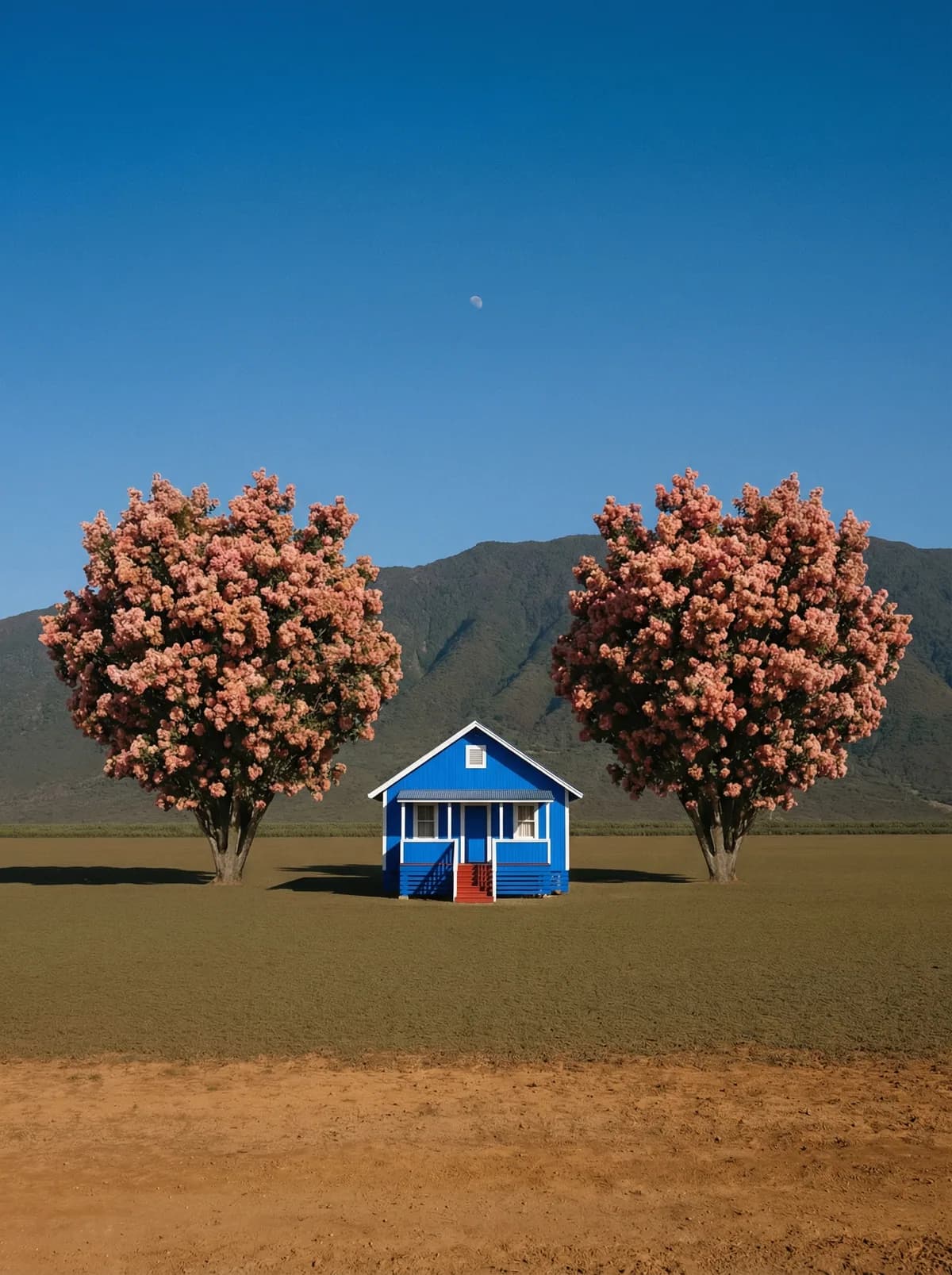
Creative direction
Rich detail with a polished editorial finish.
Create high-quality images with Flux Kontext Pro. Add reference images when the model supports them.
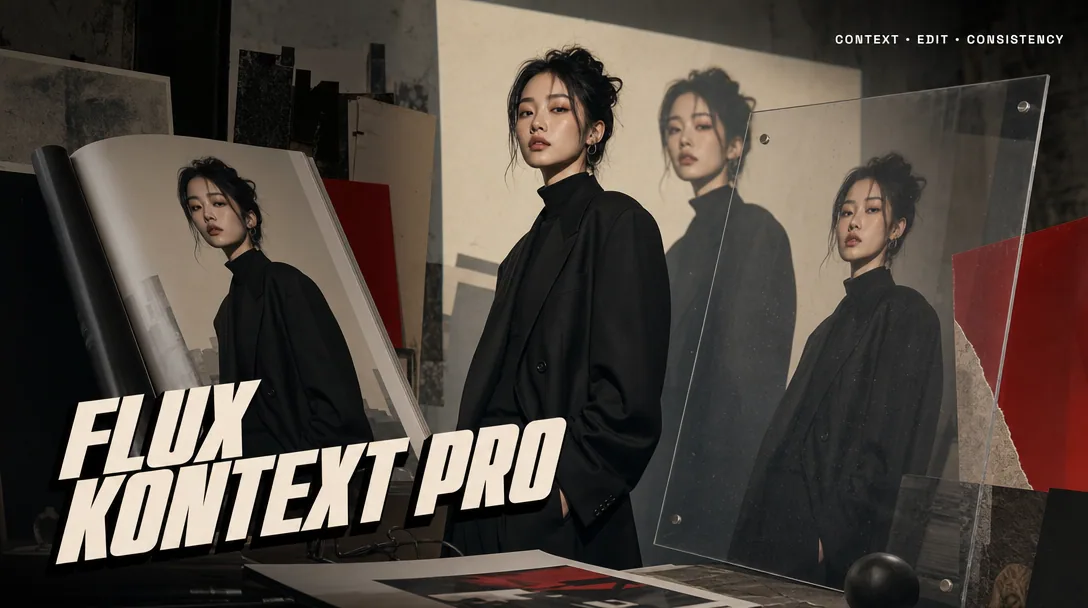
Compare models and choose the one that fits your next idea.
Featured creations
Explore images created with different prompts, styles, subjects, and compositions.
Rich detail with a polished editorial finish.
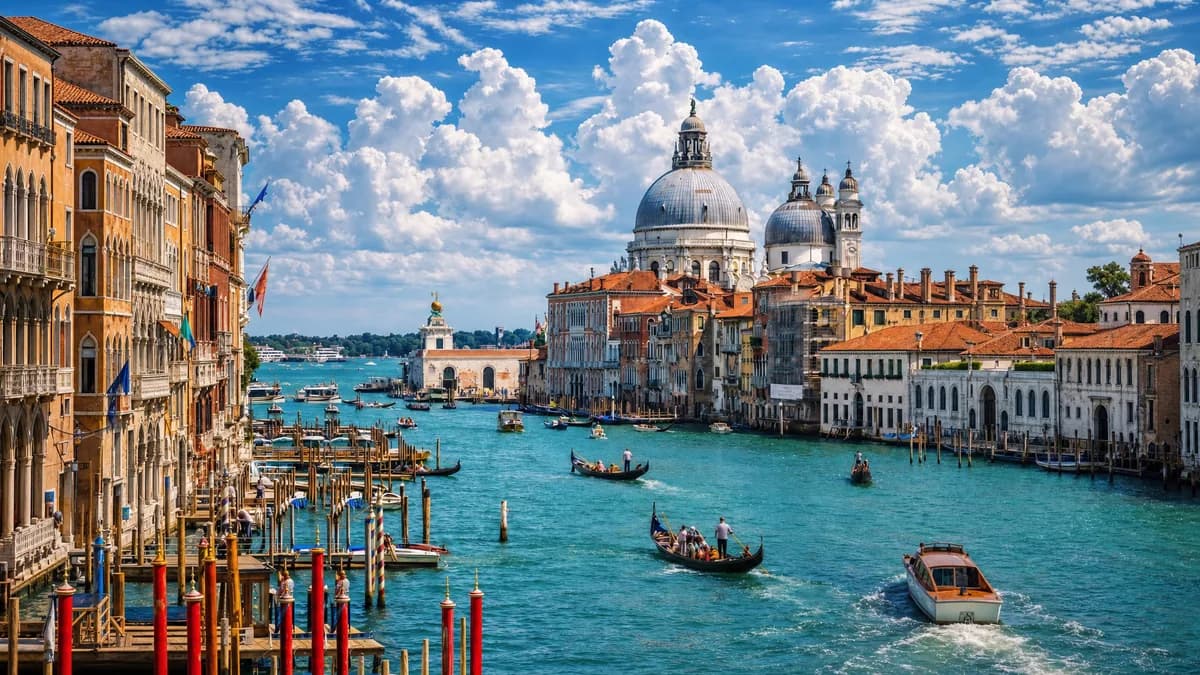
Balanced light, depth, and spatial structure.

Clear subjects with expressive, consistent features.

Natural textures and clean high-resolution output.
Model capabilities
Control the composition, keep references consistent, adjust the lighting, and edit specific details.
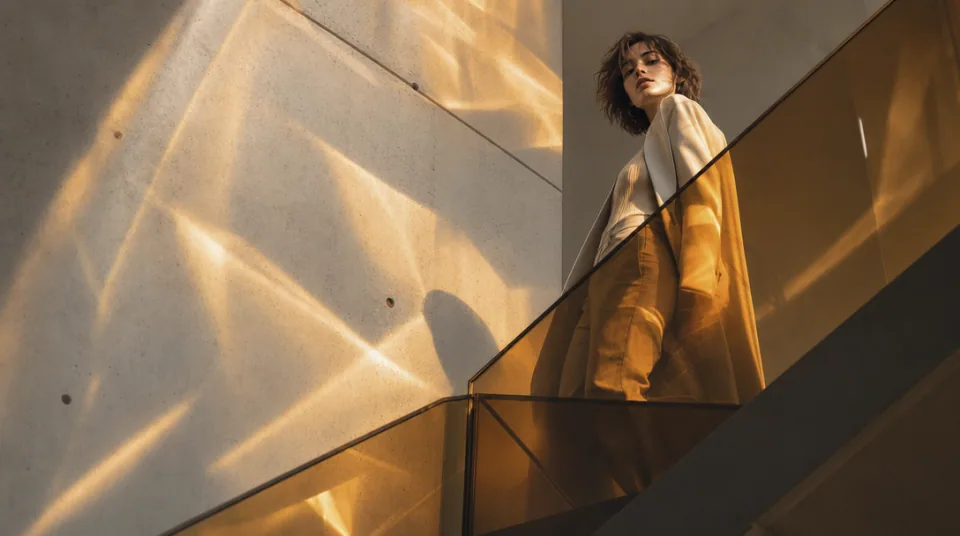
01 / COMPOSITION
Choose the framing, camera angle, perspective, and depth to create the scene you want.
See the workflow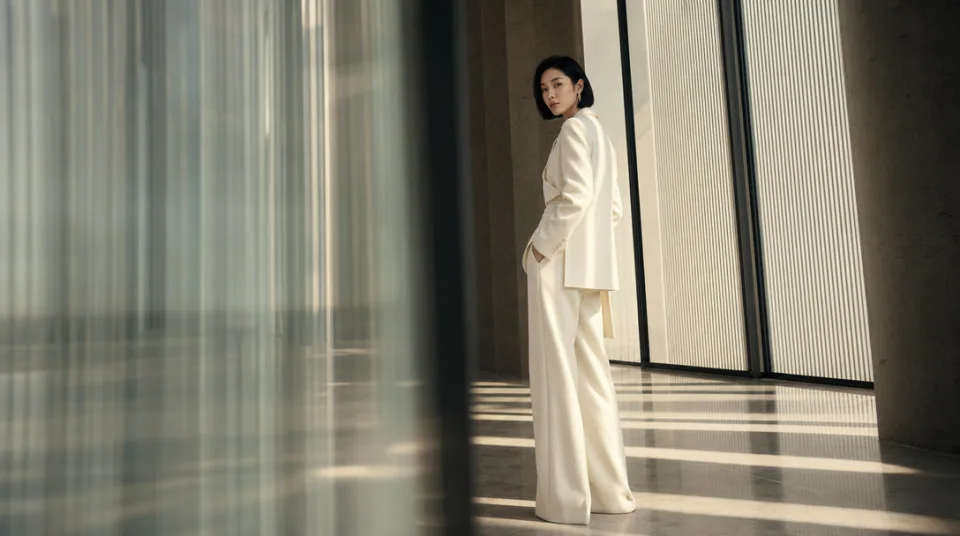
02 / CONSISTENCY
Use reference images to maintain the same character, product, clothing, or visual style across new images.
See the workflow
03 / LIGHTING
Adjust the light direction, contrast, color, and time of day to create different moods.
See the workflowOne workspace
Create an image from text and references, edit the result, and upscale it without switching tools.
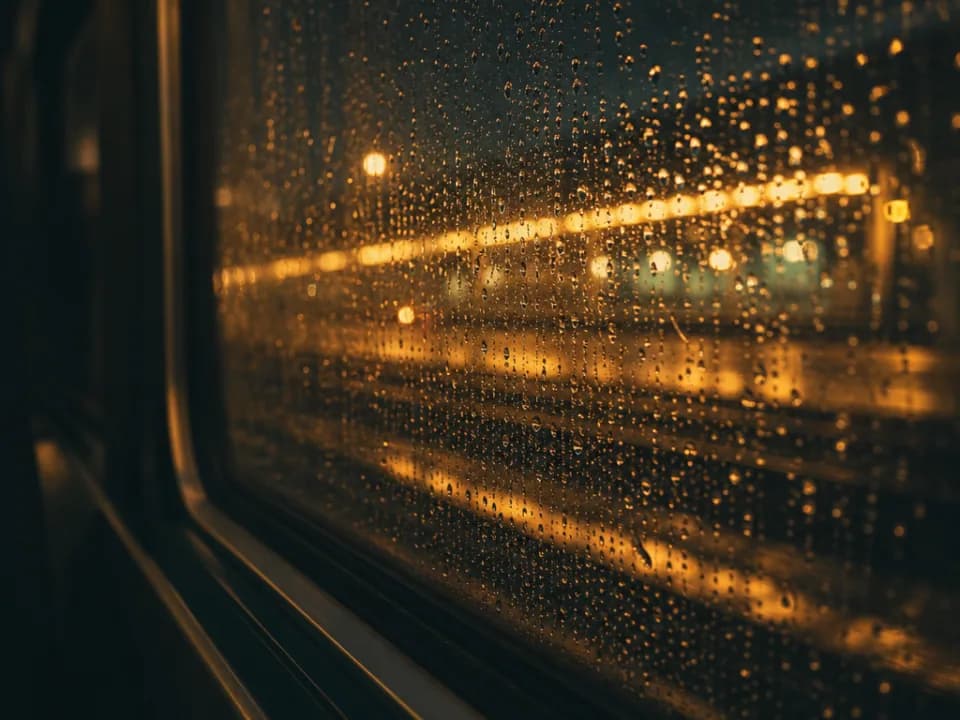
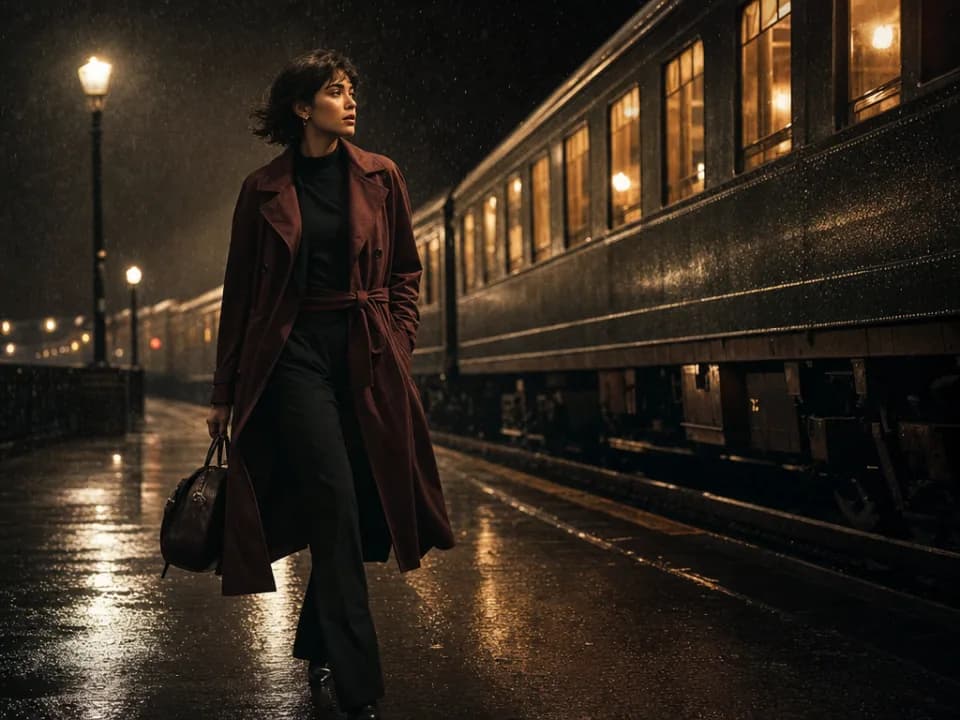
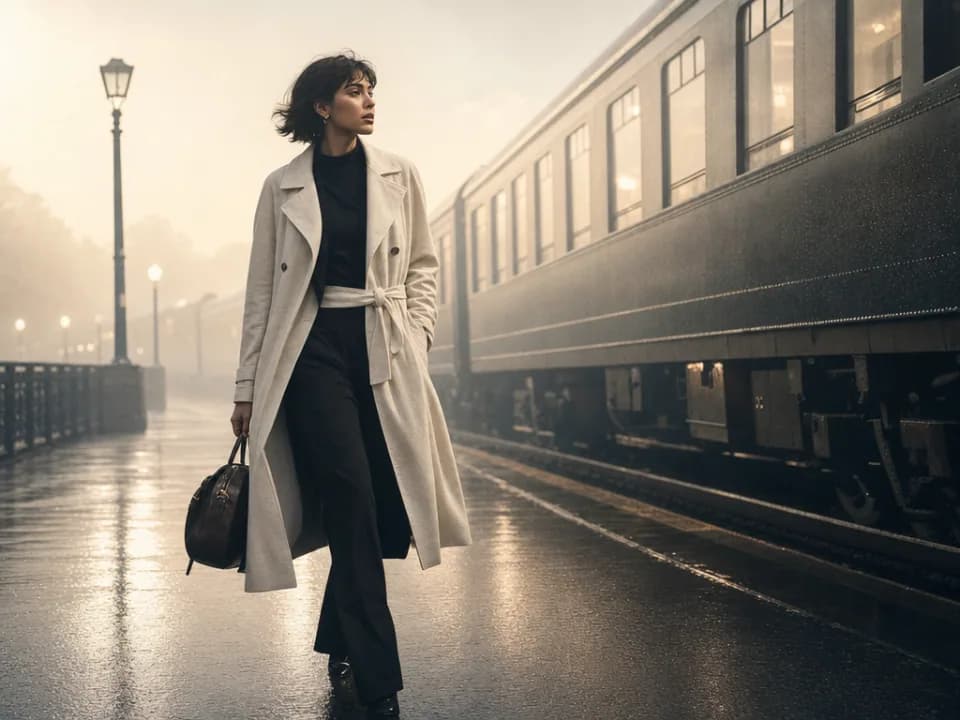
Compare Flux Kontext Pro's strengths, ideal use cases, supported controls, and tradeoffs before you generate.
Flux Kontext Pro is strongest at targeted edits to an existing image. It can change a specific object, color, background, style, or piece of text while preserving the broader subject and scene, so it is more edit-focused than general-purpose multi-reference models.
Use it for product colorways, background replacement, character continuity, wardrobe changes, localized poster text, style transformation, and iterative art direction on one approved source image. It is ideal when most of the original should remain intact.
The workspace supports one reference image, PNG or JPG output, and ten aspect ratios ranging from 21:9 to 9:16. It does not expose a separate output-resolution selector. Use the source image as the visual anchor and describe the edit in natural language.
Choose Kontext Pro when one existing image is the starting point and the change should be localized. Choose Flux 2 Pro for new scenes assembled from several references, Flux 2 Flex for typography-heavy generation, or Flux Schnell for quick text-to-image drafts.
Use an edit instruction with three parts: what to change, what to preserve, and how the new element should match the scene. For example: âReplace the blue chair with a red leather chair; keep the room layout and camera fixed; match the existing afternoon light and shadows.â
Use another model when you need to combine several source images, generate many unrelated concepts, or choose a specific 2K or 4K resolution. Kontext Pro is at its best when the source image is already close to the desired result.