
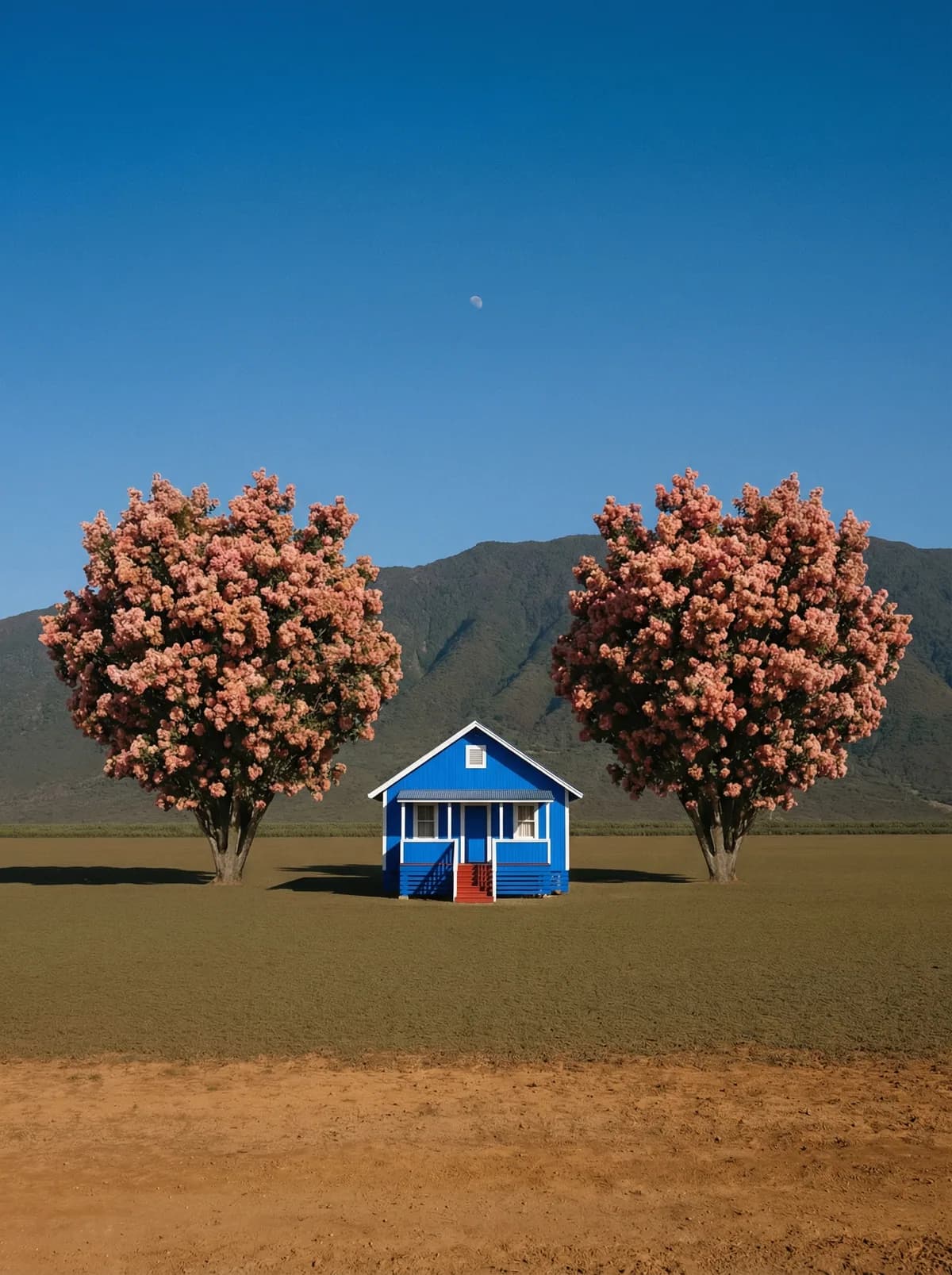
Creative direction
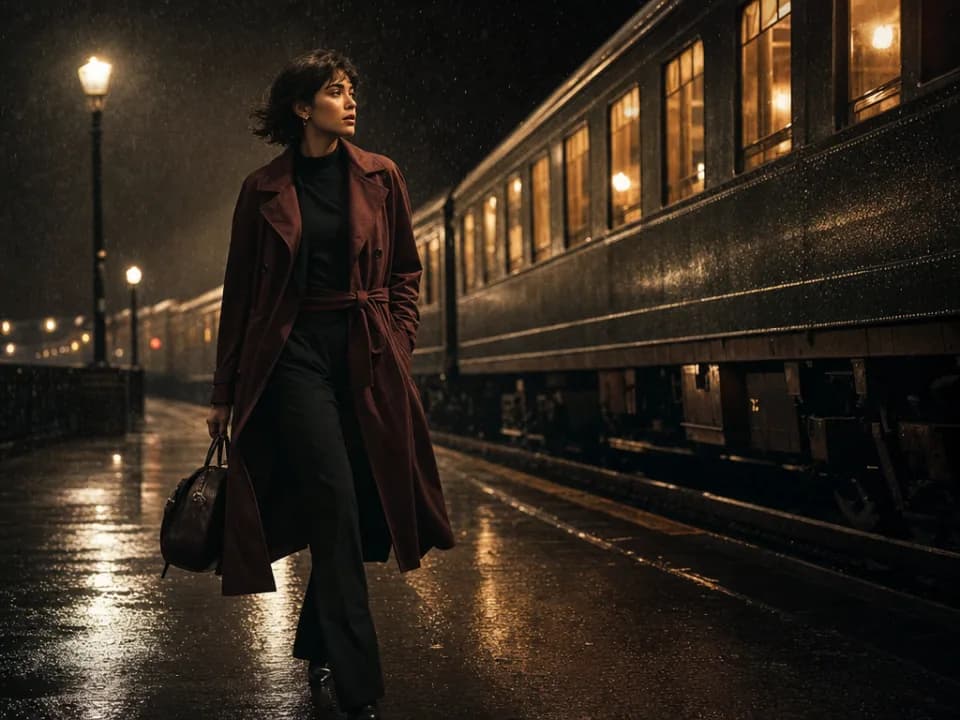
Rich detail with a polished editorial finish.
Create high-quality images with Flux 2 Flex. Add reference images when the model supports them.
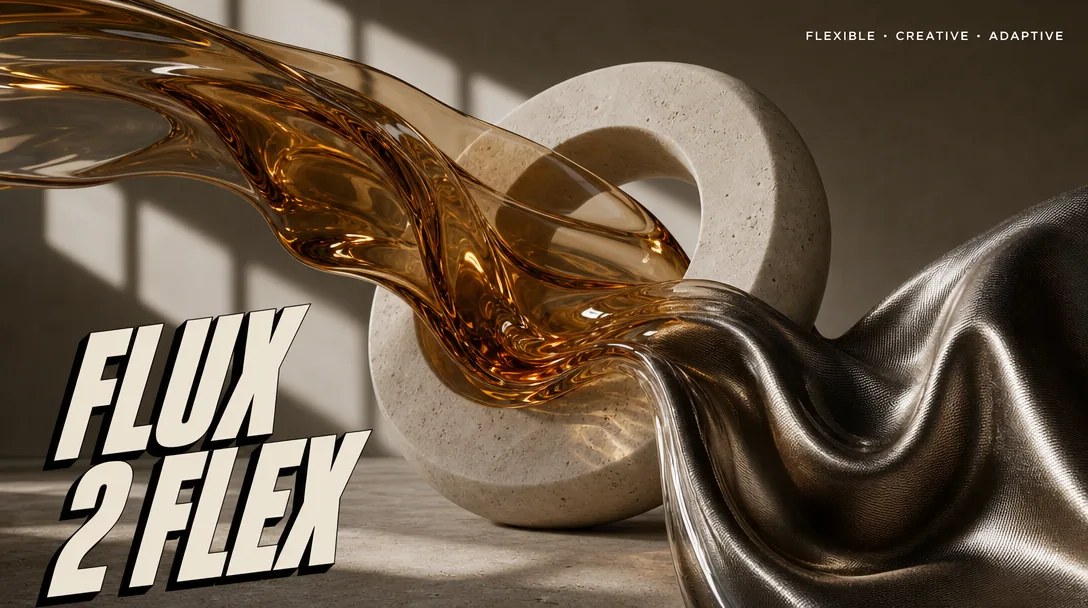
Compare models and choose the one that fits your next idea.
Featured creations
Explore images created with different prompts, styles, subjects, and compositions.
Rich detail with a polished editorial finish.
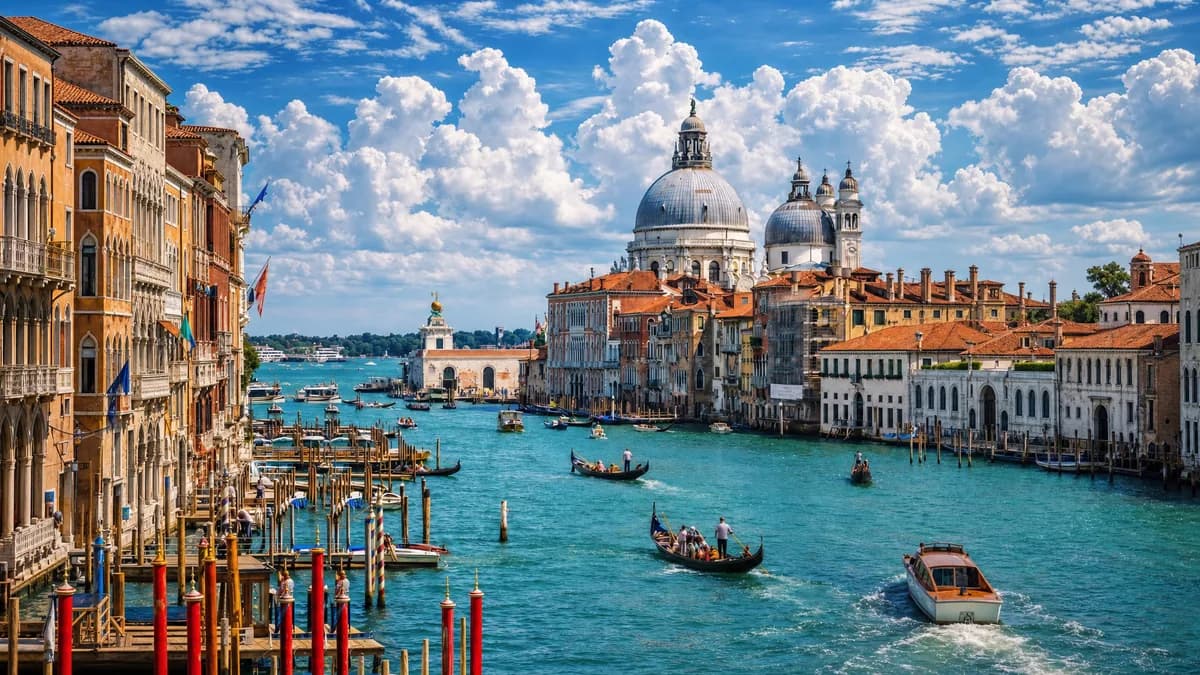
Balanced light, depth, and spatial structure.

Clear subjects with expressive, consistent features.
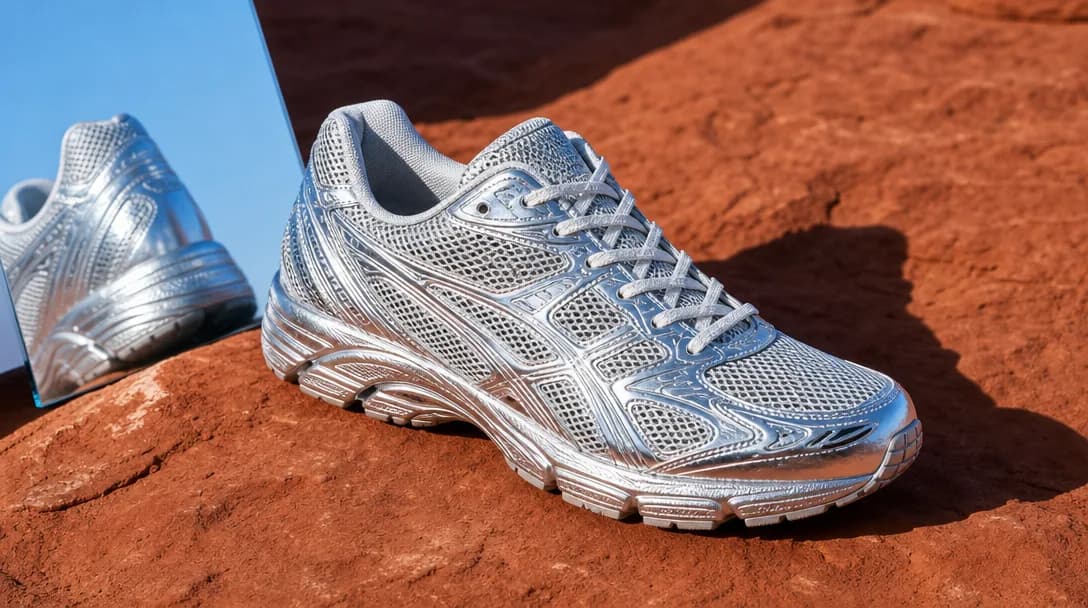
Natural textures and clean high-resolution output.
Model capabilities
Control the composition, keep references consistent, adjust the lighting, and edit specific details.
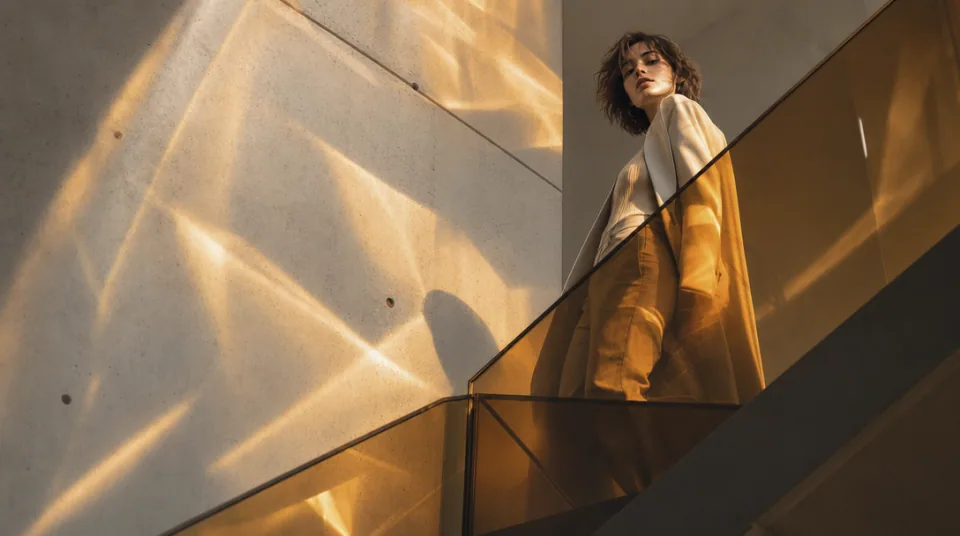
01 / COMPOSITION
Choose the framing, camera angle, perspective, and depth to create the scene you want.
See the workflow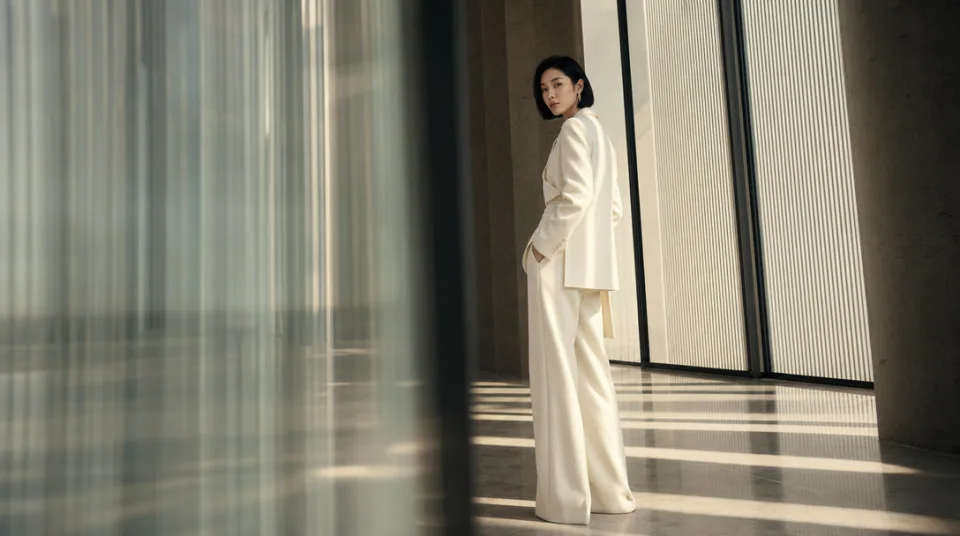
02 / CONSISTENCY
Use reference images to maintain the same character, product, clothing, or visual style across new images.
See the workflow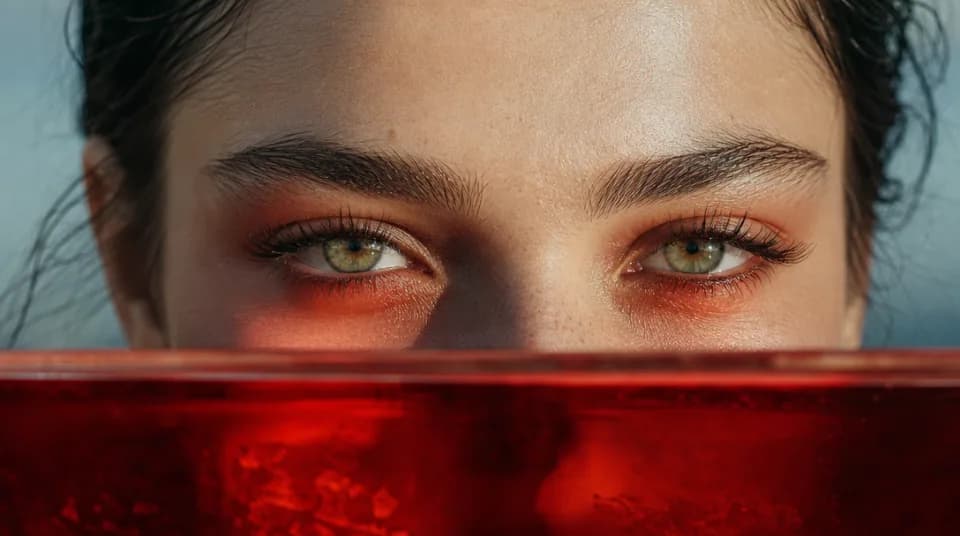
03 / LIGHTING
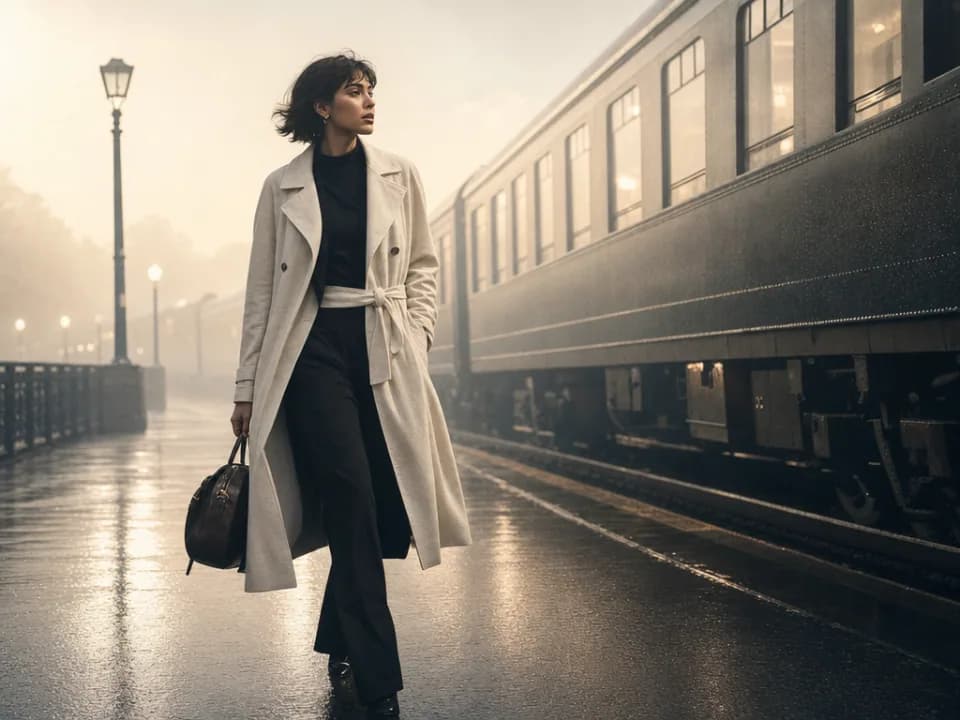
Adjust the light direction, contrast, color, and time of day to create different moods.
See the workflowOne workspace
Create an image from text and references, edit the result, and upscale it without switching tools.
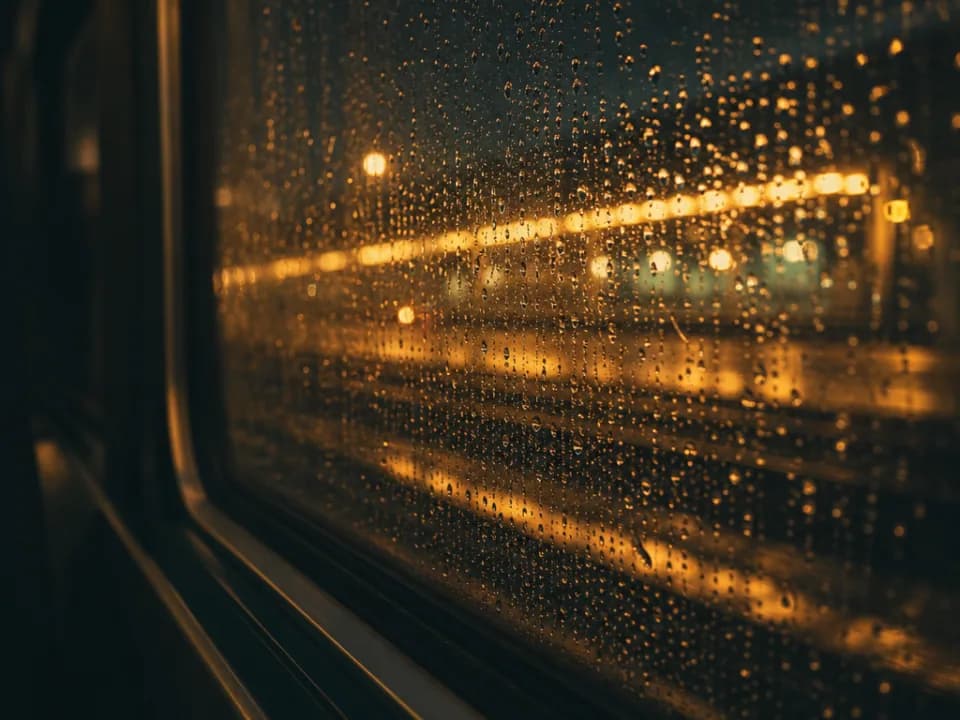
Compare Flux 2 Flex's strengths, ideal use cases, supported controls, and tradeoffs before you generate.
Flux 2 Flex is the detail-control option in the Flux 2 family. It is particularly strong when typography, small product features, surface texture, or fine visual structure must survive a complex generation or multi-reference composition.
Use it for posters, magazine covers, packaging concepts, UI or campaign mockups, product close-ups, infographics, and ad layouts where text and small design details carry meaning. It also works well for reference-led compositions that need consistent products or people.
The Gigapixel AI workspace accepts up to 8 reference images, offers 1K or 2K output, and supports eight aspect ratios from portrait and square to landscape and 21:9. Use high-quality references when small logos, labels, patterns, or material details must remain recognizable.
Choose Flex when fine control, typography, and small-detail preservation are central to the brief. Choose Flux 2 Pro for a balanced production workflow at scale, Kontext Pro for a focused edit to one source image, or Schnell for quick text-only concepts.
Describe the layout explicitly and quote all text. Specify hierarchy, alignment, spacing, font character, material, and exact colors when relevant. For references, label which image supplies the subject, typography, palette, or composition instead of asking the model to blend everything equally.
Choose Nano Banana Pro for more complex reasoning and 4K output, GPT Image 2 for especially long briefs or more references, or Midjourney when stylistic discovery matters more than exact text and layout control.