AI Video Generator

AI video generator

Introducing Gigapixel AI's Video Generator

Move from text or a still image to a finished clip in one workspace. Shape the subject, action, atmosphere, and camera direction, then choose the video model that best fits the shot.

AI video generator features

Create, direct, and finish AI videos.

Turn a text prompt or still image into a finished clip. Control the shot, plan key frames, compare leading video models, and choose the output for where it will play.

01

Text to video

Text-to-Video Generation

Create AI videos from just words. Describe the subject, action, setting, visual style, and camera movement you want. Short prompts work for quick ideas, while detailed prompts give the model clearer direction for a specific shot.

Generate from text
Natural-language direction

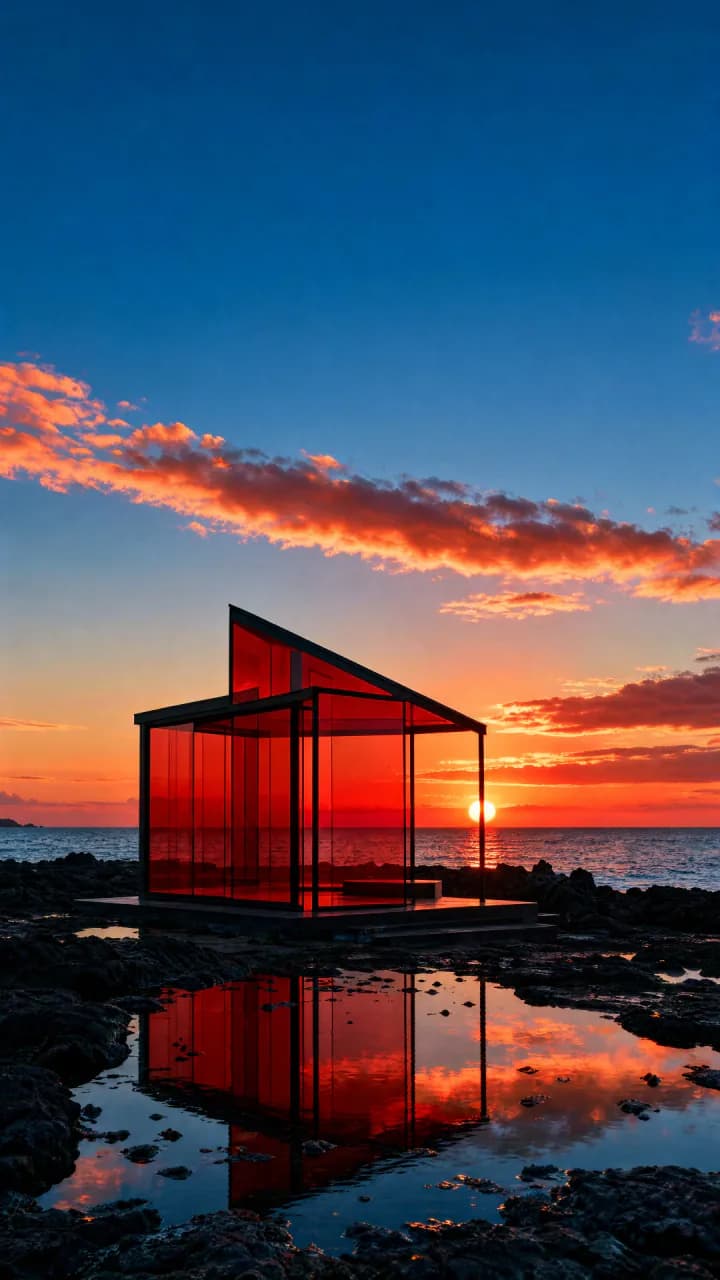
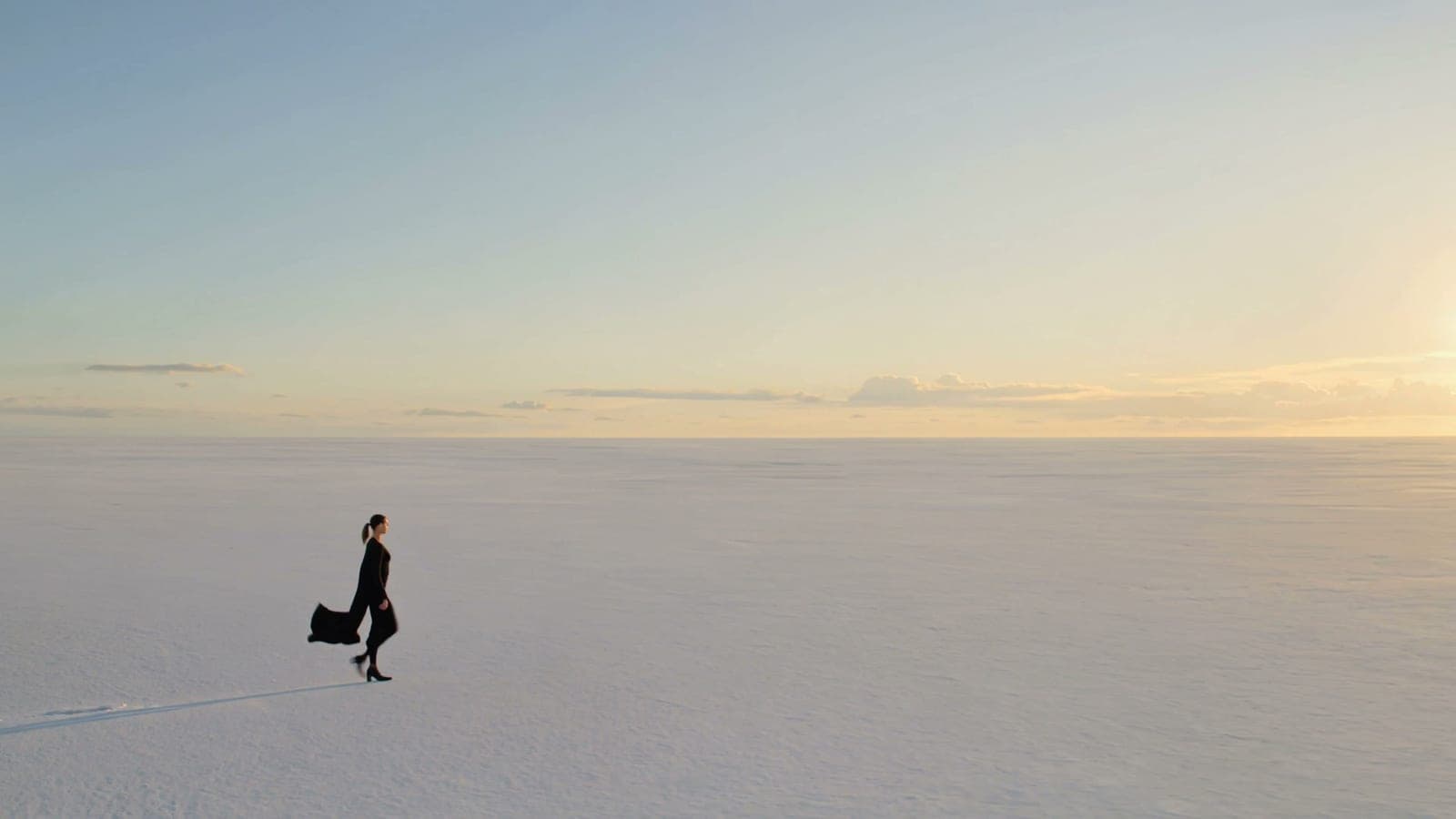
A slow aerial reveal over glacial peaks beneath moving northern light.
02

Image to video

Image-to-Video Animation

Upload a still image, such as a product shot, portrait, or artwork, and describe what should happen next. Add subject movement, environmental motion, and camera direction while keeping the original composition and visual identity recognizable.

Animate an image
Still image used to guide the video

Starting image

03

Camera direction

Cinematic Camera Controls

Direct the camera like a filmmaker using simple language. Describe an angle or point of view, then add pans, dolly moves, orbits, zooms, and tracking shots to reveal the scene with intention.

Control camera motion
Slow tracking shot
04

First and last frame

First and Last Frame Control

On supported models, define the opening and closing images before generation. The model builds the motion between those key moments, giving transitions, transformations, and composed sequences a deliberate start and finish.

Set key frames
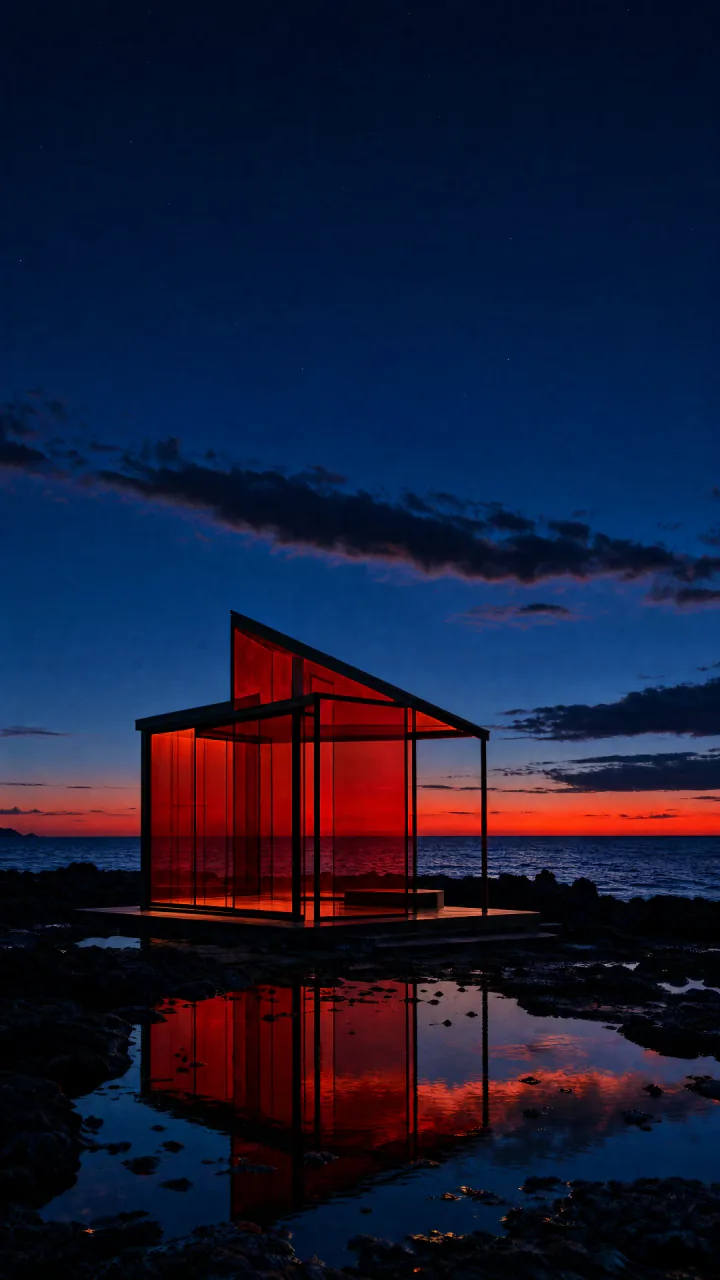
First frame
First frame
Generated motion
Last frame
Last frame
05

Multiple models

Multiple AI Video Models

Create with Seedance 2.0, Kling 3.0, Veo 3.1, and Grok Imagine Video. Compare how each model handles motion, realism, pacing, and prompt direction, then choose the one that best fits your shot.

Compare video models
Seedance 2.0
Kling 3.0
Veo 3.1
Grok Imagine

Continue the workflow

More Ways to Create and Refine

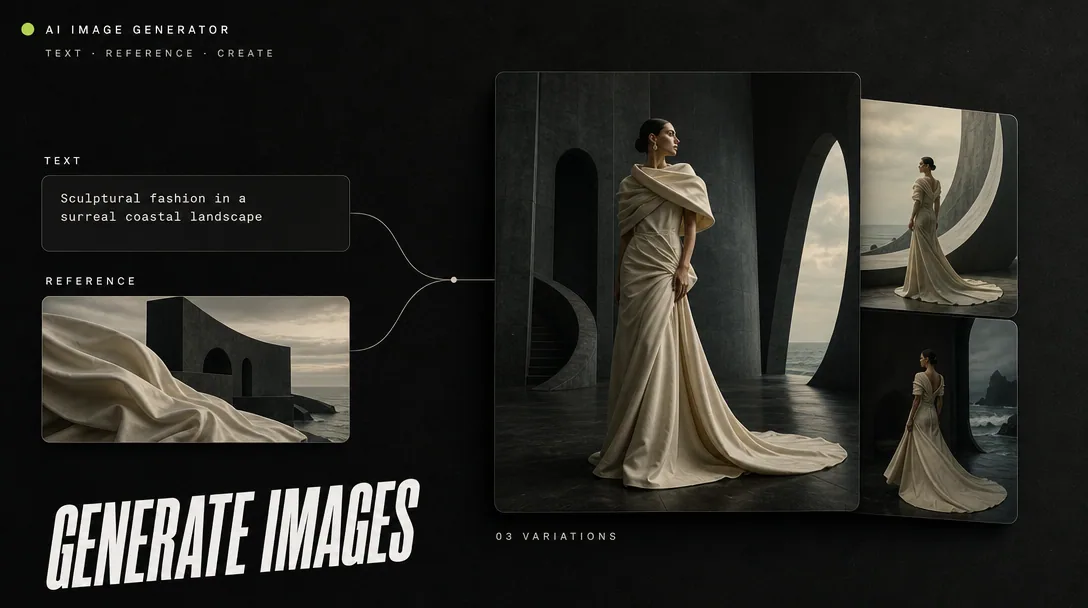
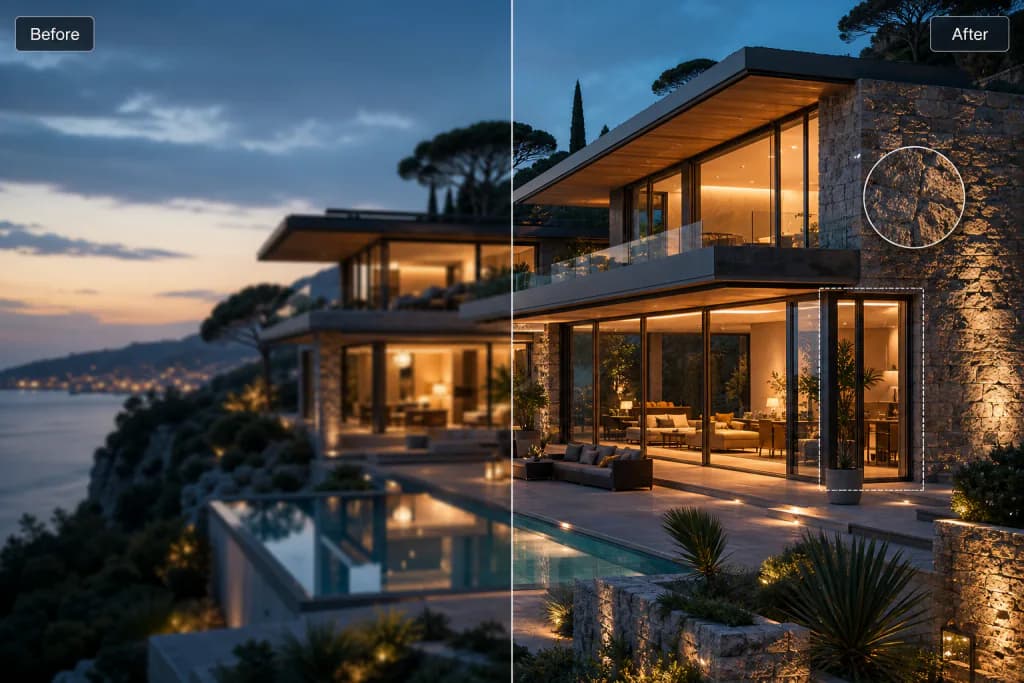
Upscale the finished clip, create a starting image, or refine a reference before you animate it.

Explore Gigapixel AI Video Generation Models

Discover dedicated model pages for different approaches to motion, realism, pacing, and prompt control.

Good to know

Questions, answered.

The essentials for turning a direction into motion and continuing the work afterward.

What can I create with the AI Video Generator?

You can create short cinematic scenes, product motion, social clips, atmospheric loops, character moments, and other visual sequences from text or a starting image. The available controls depend on the selected model.

Can I generate a video from text alone?

Yes. Start with a clear description of the subject, action, setting, visual style, and camera movement. You can also begin with an image when you want the first frame or subject appearance to be more specific.

How do I write a better video prompt?

Describe one coherent shot: name the subject, what changes over time, the environment, the light, and how the camera moves. Keep simultaneous actions limited so the model can preserve the scene clearly.

Which video model should I use?

Choose the model available in the generator based on the result you need, then use the dedicated model pages to explore additional approaches. Each model differs in prompt following, motion, realism, duration, and supported inputs.

How many credits does a video use?

Credit cost depends on the selected model, duration, and output settings. The current cost appears beside the Generate button before submission so you can review it before starting the task.

Can I improve the video after it is generated?

Yes. Continue to the AI Video Upscaler when you want a larger or cleaner output. You can also return to the generator with a revised prompt or a stronger starting image to explore another direction.

Where can I find my generated videos?

When you are signed in, completed clips appear in your generator history and Assets workspace. Processing items update automatically, so you do not need to refresh the page manually.

Upscale Images & Videos With Gigapixel AI

Start Now
Free daily creditsPrivate & secureEnhance up to 10x